# Word & Office-Anwendungen

Hier gibt es Seiten zum Thema Word &amp; Office

# PDFs in Word verschlüsseln

1. Dokument **erstellen**
2. Datei -&gt; Exportieren -&gt; PDF/XPS-Dokument erstellen -&gt;**PDF/XPS-Dokument erstellen**

[![screenshot-2026-06-17-124057.png](https://bookstack.weinstock.it/uploads/images/gallery/2026-06/scaled-1680-/pocscreenshot-2026-06-17-124057.png)](https://bookstack.weinstock.it/uploads/images/gallery/2026-06/pocscreenshot-2026-06-17-124057.png)

3\. Einen **Ort zum Speichern** auswählen und benennen  
4\. Unten auf **OPTIONEN**  
5\. Ganz unten auf **"Dokument mit einem Kennwort verschlüsseln"**

[![Screenshot 2026-06-17 124237.png](https://bookstack.weinstock.it/uploads/images/gallery/2026-06/scaled-1680-/screenshot-2026-06-17-124237.png)](https://bookstack.weinstock.it/uploads/images/gallery/2026-06/scaled-1680-/screenshot-2026-06-17-124237.png)

6\. **Kennwort** eingeben

[![Screenshot 2026-06-17 124245.png](https://bookstack.weinstock.it/uploads/images/gallery/2026-06/scaled-1680-/screenshot-2026-06-17-124245.png)](https://bookstack.weinstock.it/uploads/images/gallery/2026-06/scaled-1680-/screenshot-2026-06-17-124245.png)

7\. Datei wird mit Kennwort als PDF exportiert.

<u>***🎉 FERTIG 🎉***</u>

# Word-Datei unterschreiben

<p class="callout info">Zunächste wird deine Unterschrift als Bilddatei benötigt. Danach kann man diese relativ einfach in jedes beliebige Word-Dokument einfügen.</p>

### 1. Unterschrift erstellen

Auf einem **weißen Blatt Papier unterschreiben**

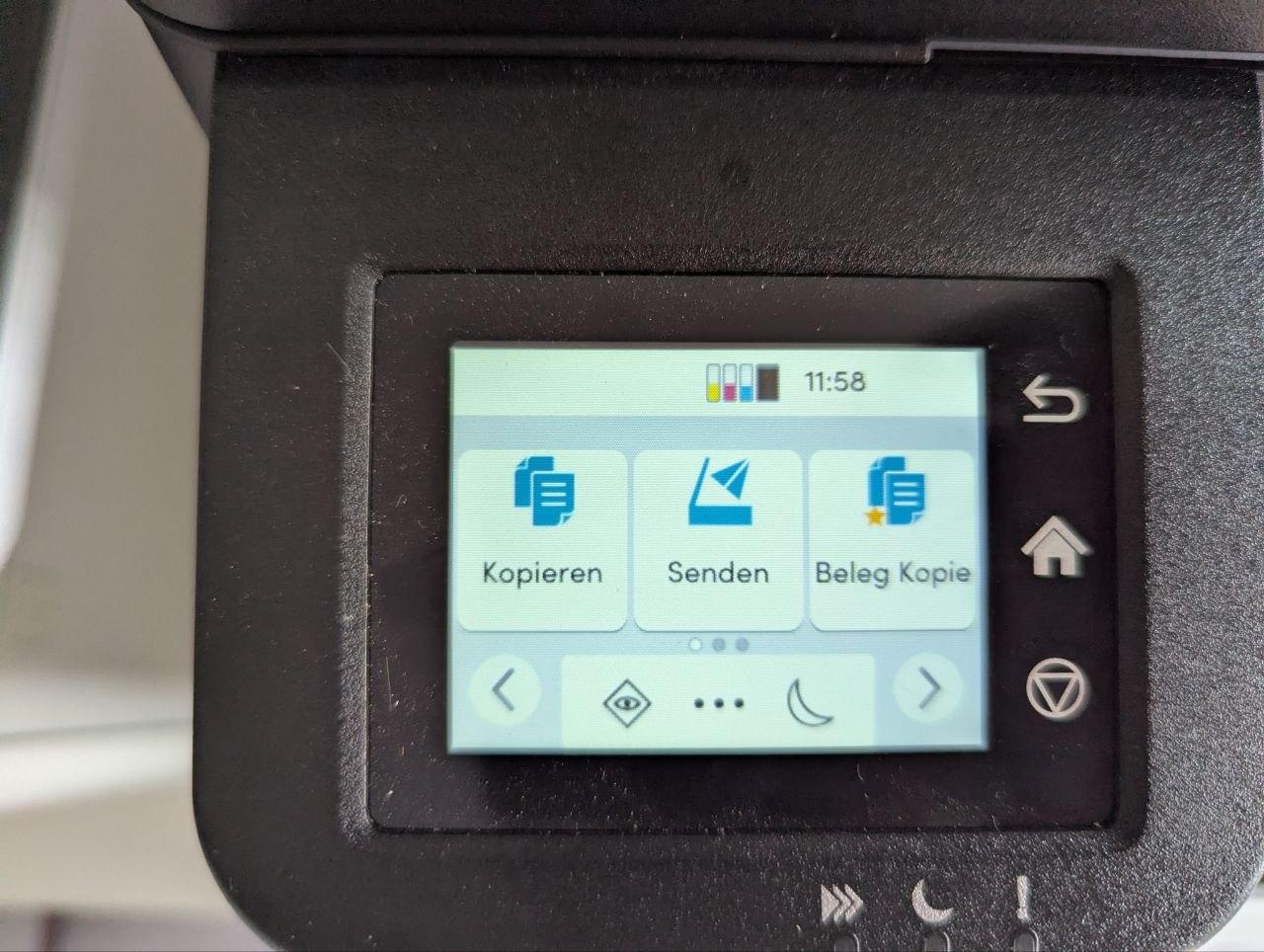
Papier als .jpg **einscannen**,

In Weingarten im Büro sind das folgende Sc*hritte:*

**SENDEN** auswählen

[![photo_1_2026-07-01_12-59-04.jpg](https://bookstack.weinstock.it/uploads/images/gallery/2026-07/scaled-1680-/mAljA2ctbF0Iu0LG-photo-1-2026-07-01-12-59-04.jpg)](https://bookstack.weinstock.it/uploads/images/gallery/2026-07/mAljA2ctbF0Iu0LG-photo-1-2026-07-01-12-59-04.jpg)
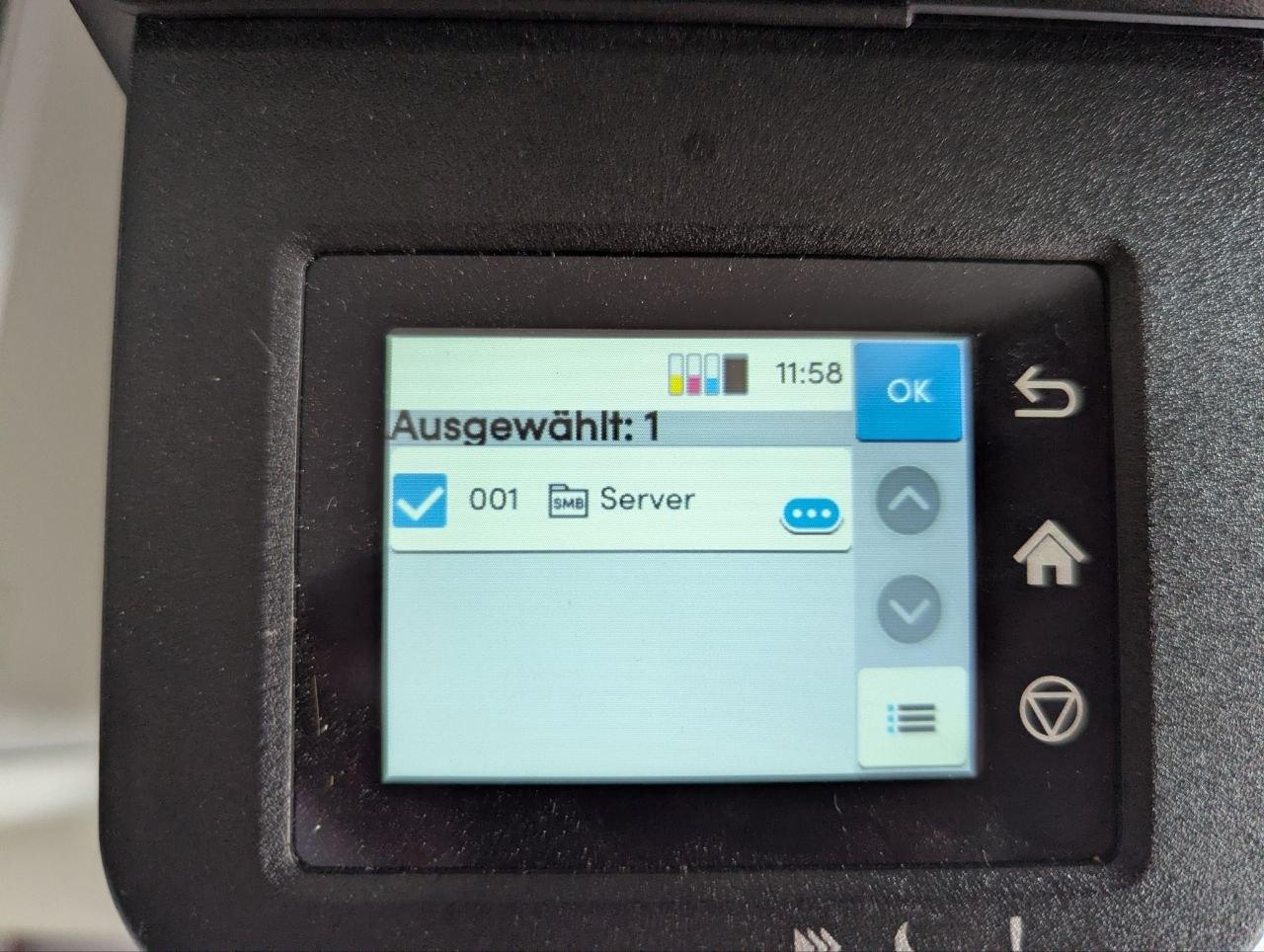
**SERVER** auswählen und bestätigen

[![photo_3_2026-07-01_12-59-04.jpg](https://bookstack.weinstock.it/uploads/images/gallery/2026-07/scaled-1680-/fdOvxHUyKsjLOpBw-photo-3-2026-07-01-12-59-04.jpg)](https://bookstack.weinstock.it/uploads/images/gallery/2026-07/fdOvxHUyKsjLOpBw-photo-3-2026-07-01-12-59-04.jpg)
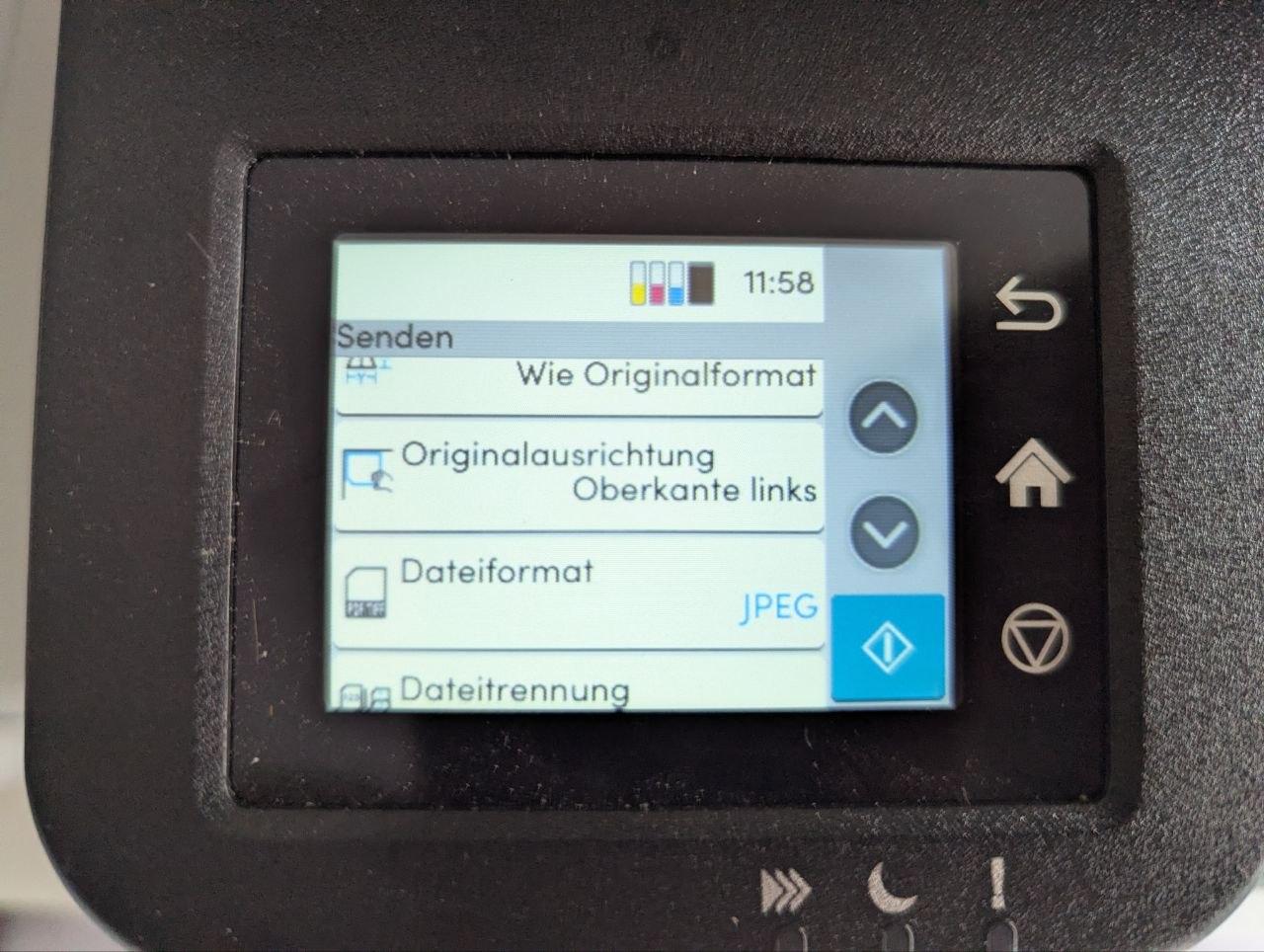
In der nächsten Liste **JPG als Format** auswählen, da .pdf voreingestellt ist.

[![photo_2_2026-07-01_12-59-04.jpg](https://bookstack.weinstock.it/uploads/images/gallery/2026-07/scaled-1680-/3EtFj6E2fW8cHlh5-photo-2-2026-07-01-12-59-04.jpg)](https://bookstack.weinstock.it/uploads/images/gallery/2026-07/3EtFj6E2fW8cHlh5-photo-2-2026-07-01-12-59-04.jpg)
Danach befindet sich die Datei auf dem NBW-Server unter

G:\\#Schnittstellen Standorte\\Scans\_Buggi

### 2.Unterschrift einfügen

In Word wird die Datei nun als Bild importiert, beschnitten und positioniert.

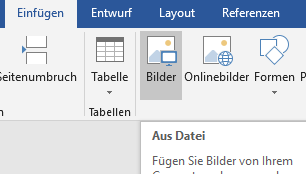
Unter **"Einfügen &gt; Bilder"** auswählen

[![image.png](https://bookstack.weinstock.it/uploads/images/gallery/2026-07/scaled-1680-/6dGG3mI8qJNkes19-image.png)](https://bookstack.weinstock.it/uploads/images/gallery/2026-07/6dGG3mI8qJNkes19-image.png)

Dann das Unterschrift-Bild auswählen. Nun ist die Unterschrift im Dokument aber wahrscheinlich noch zu groß.

Im nächsten Schritt mit einem Rechtsklick auf das Bild auf **Zuschneiden** klicken

[![image.png](https://bookstack.weinstock.it/uploads/images/gallery/2026-07/scaled-1680-/bBTtliggNKtYcRnA-image.png)](https://bookstack.weinstock.it/uploads/images/gallery/2026-07/bBTtliggNKtYcRnA-image.png)
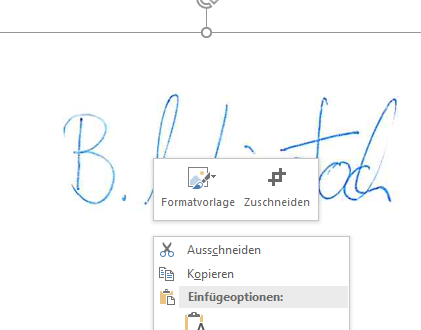
Nun kann man über die **schwarzen Balken** an den Rändern das Bild zuschneiden und per Drag and Drop positionieren

[![image.png](https://bookstack.weinstock.it/uploads/images/gallery/2026-07/scaled-1680-/jexOgCTuxNNCZJoW-image.png)](https://bookstack.weinstock.it/uploads/images/gallery/2026-07/jexOgCTuxNNCZJoW-image.png)
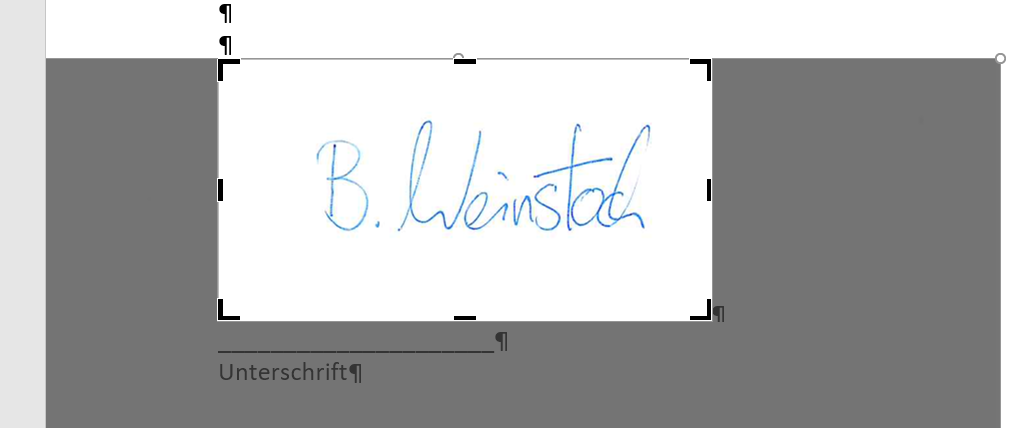
Gegebenenfalls dann noch die **Darstellung** anpassen, dass das Bild über allem steht

[![image.png](https://bookstack.weinstock.it/uploads/images/gallery/2026-07/scaled-1680-/ULOrtiIOtor8LcfQ-image.png)](https://bookstack.weinstock.it/uploads/images/gallery/2026-07/ULOrtiIOtor8LcfQ-image.png)
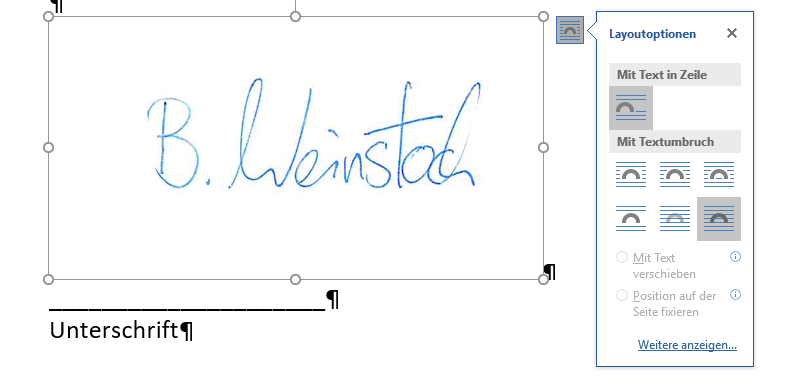
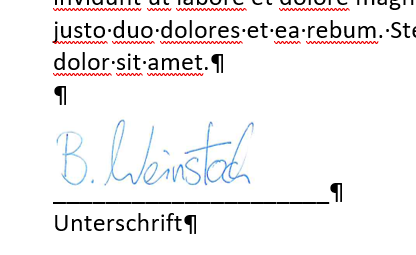
🎉Voila, das fertige Ergebnis! 🎊

[![image.png](https://bookstack.weinstock.it/uploads/images/gallery/2026-07/scaled-1680-/IMpG9xzM2wtHnDN9-image.png)](https://bookstack.weinstock.it/uploads/images/gallery/2026-07/IMpG9xzM2wtHnDN9-image.png)
# PDF´s verschlüsseln

<p class="callout info">Auf den NBW-Rechnern sollte überall **PDF24 Toolbox** installiert sein</p>

**PDF24 Toolbox** über das Startmenü öffnen:

[![image.png](https://bookstack.weinstock.it/uploads/images/gallery/2026-07/scaled-1680-/6dzUQqPDJXQXCp2m-image.png)](https://bookstack.weinstock.it/uploads/images/gallery/2026-07/6dzUQqPDJXQXCp2m-image.png)
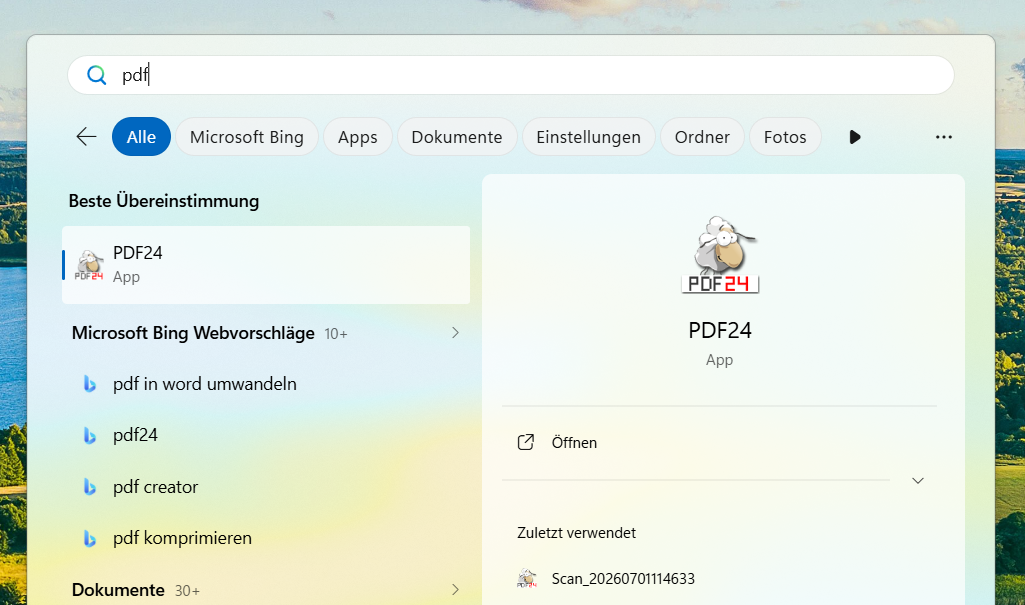
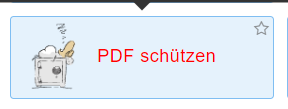
Dort gibt es dann die Option PDF schützen

[![image.png](https://bookstack.weinstock.it/uploads/images/gallery/2026-07/scaled-1680-/L7zJVanEaIzkimhf-image.png)](https://bookstack.weinstock.it/uploads/images/gallery/2026-07/L7zJVanEaIzkimhf-image.png)
[![image.png](https://bookstack.weinstock.it/uploads/images/gallery/2026-07/scaled-1680-/3PNTpK3af8YjBJbj-image.png)](https://bookstack.weinstock.it/uploads/images/gallery/2026-07/3PNTpK3af8YjBJbj-image.png)
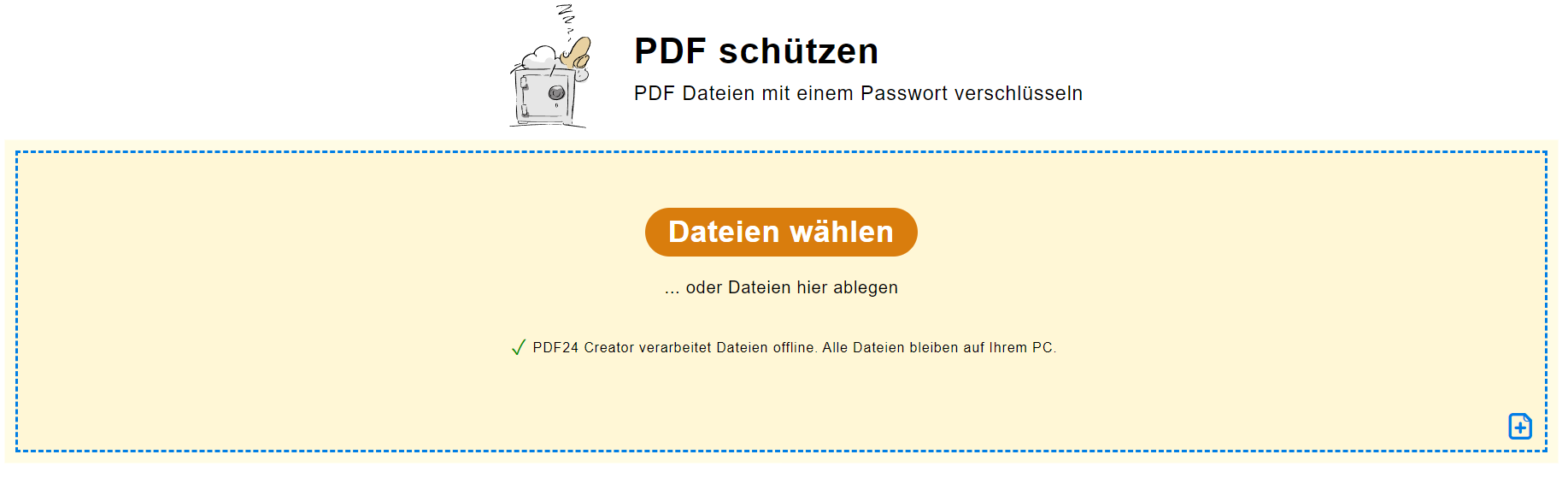
Hier nun die Datei wählen und unten links das Kennwort eingeben

[![image.png](https://bookstack.weinstock.it/uploads/images/gallery/2026-07/scaled-1680-/G7ohcn6GDF3HvakL-image.png)](https://bookstack.weinstock.it/uploads/images/gallery/2026-07/G7ohcn6GDF3HvakL-image.png)
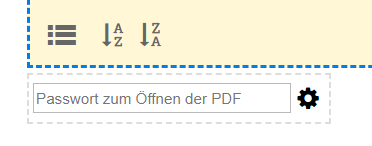
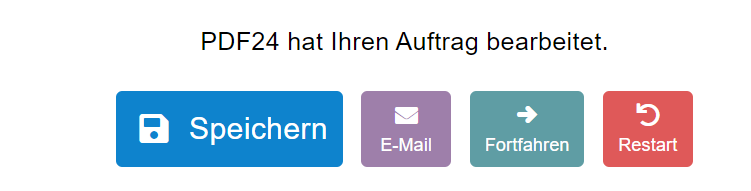
dann rechts auf den Knopf PDF Datei schützen und im nächsten Schritt abspeichern

[![image.png](https://bookstack.weinstock.it/uploads/images/gallery/2026-07/scaled-1680-/bjtZF0rcchyKZVxG-image.png)](https://bookstack.weinstock.it/uploads/images/gallery/2026-07/bjtZF0rcchyKZVxG-image.png)
**🎉Voila!🎊**